Odd Bits / Your files
Name your chat
Choose any chat, one-on-one or group. Get a name for it and a role for everyone, worked out from the numbers.
1. Choose your chat
WhatsApp: Export chat, Without media (a .txt or .zip). Telegram Desktop: Export chat history, JSON (result.json).
Looking for your own data? Instagram, Netflix, Spotify, Messenger and your git history are on Year in review.
Need help getting your chat?
WhatsApp on iPhone
- Open the chat you want. Any chat, one-on-one or group, works.
- Tap the chat’s name at the top of the screen.
- Scroll down and tap Export chat. Then tap Without media (the other choice, Attach media, makes a much larger file).
- In the share sheet choose Save to Files, or send it to yourself by email or message, and keep the file where you can find it again.
- Choose that file here. If WhatsApp gave you a .zip, choose the .zip: only the chat text inside it is read.
WhatsApp on Android
- Open the chat you want. Any chat, one-on-one or group, works.
- Tap More options (the three dots), then More if you see it, then Export chat.
- Choose the option without media.
- Pick where to send it, for example Gmail or Quick Share, or save it to your phone. Sending it to yourself by email is the simplest.
- Choose that file here. If WhatsApp gave you a .zip, choose the .zip: only the chat text inside it is read.
WhatsApp on Mac
- Open the chat you want in the WhatsApp app on your Mac. Any chat, one-on-one or group, works.
- Click the chat’s name at the top, then Export chat.
- Choose Without media (Attach media makes a much larger file).
- WhatsApp saves it to your Downloads folder (it says “Exported chat was saved to Downloads folder”).
- Choose that file here. If WhatsApp gave you a .zip, choose the .zip: only the chat text inside it is read.
Telegram Desktop
- Install Telegram Desktop on your computer and sign in. The export is made there, not in the phone app.
- Open the chat you want. Any chat, one-on-one or group, works.
- Open the chat’s menu (the “…” button in the chat) and choose Export chat history. If you do not see it, look in the same menu for anything named export.
- Set the format to JSON (not HTML) and leave the media options off.
- Start the export. When it finishes, open the export folder: the file you need ends in .json and is usually named result.json.
- Choose that .json file here. You can move it to your phone and use this page there.
Instagram DM
- In the Instagram app open Settings and look for Accounts Center (some versions say Meta Account), then Your information and permissions, then Export your information. Instagram renames these sometimes: look for the export or download-your-information option.
- Choose Create export, pick your account, and choose Export to device.
- If it asks what to include, make sure Messages is in it. Choose JSON (not HTML), the lowest media quality, and All time (or the dates you want).
- Start the export. Instagram emails you a link when it is ready. It usually arrives within a day, sometimes longer. The link only works for a few days, so download it soon.
- On this page open the “Instagram or Messenger DM” tab, choose the .zip file or files (you do not need to unzip them), then pick the conversation you want.
Messenger DM
- On facebook.com, click your profile picture, then Settings and privacy, then Settings.
- Go to Accounts Center (some versions say Accounts Centre), then Your information and permissions, then Export your information.
- Choose Create export, select your Facebook profile, then Export to device.
- If it lets you choose what to include, pick Messages. Choose JSON (not HTML), and a date range if asked. Start the export.
- Meta tells you when it is ready. The download only stays for a few days, so get it soon: look for a downloads list on the Export your information page.
- On this page open the “Instagram or Messenger DM” tab, choose the .zip file or files (you do not need to unzip them), then pick the conversation you want.
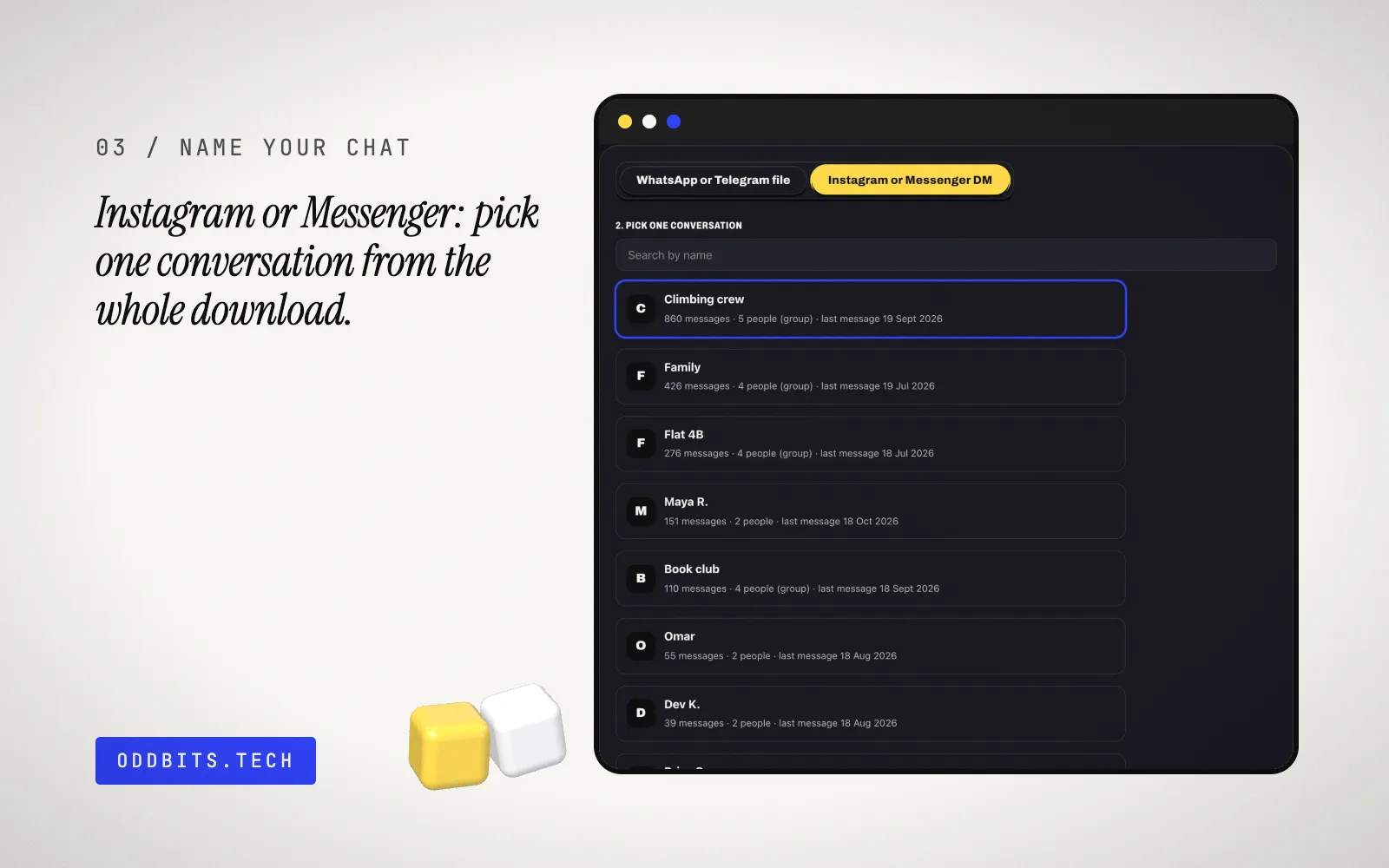
Can’t find it? The menu names move around between app versions: look for “Export chat” or “Export chat history”, or search the app’s Help for “export chat”. Any chat, one-on-one or group, can be exported. For an Instagram or Messenger conversation you need the whole download: the page lists its conversations and you pick one.
A WhatsApp or Telegram chat, or an Instagram or Messenger DM. Runs in your browser; your file is not uploaded.
- What you get
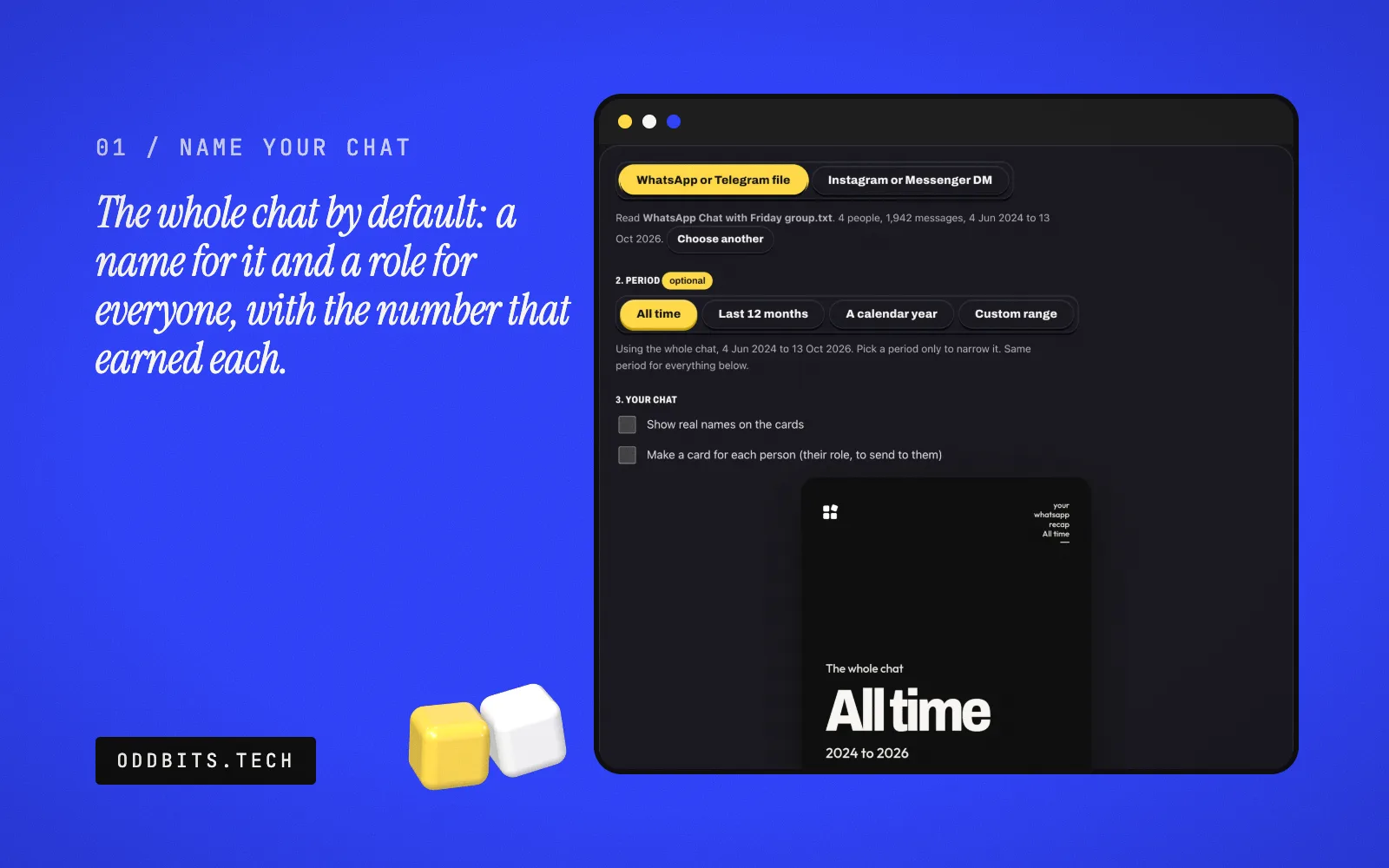
- A name for the chat and a role for everyone, worked out from the numbers, for the whole chat or a period you pick
- From the same chat, with no second upload: a Who Said It? quiz, a receipt, and Chat Chemistry for two-person chats
- Pick one conversation out of an Instagram or Messenger download
- Works with
- WhatsApp .txt or .zipTelegram result.jsonInstagram or Messenger download
- Version
- v1.0, updated 2026-10-24
What it never does
- Show real names on a card unless you tick the box: people appear as Person 1, Person 2 and so on
- Quote your messages: the name and roles come from counts. The Favourites card lists the words and emoji used most, and Who Said It? shows only the lines you pick
- Read more than the one conversation you pick from an Instagram or Messenger download
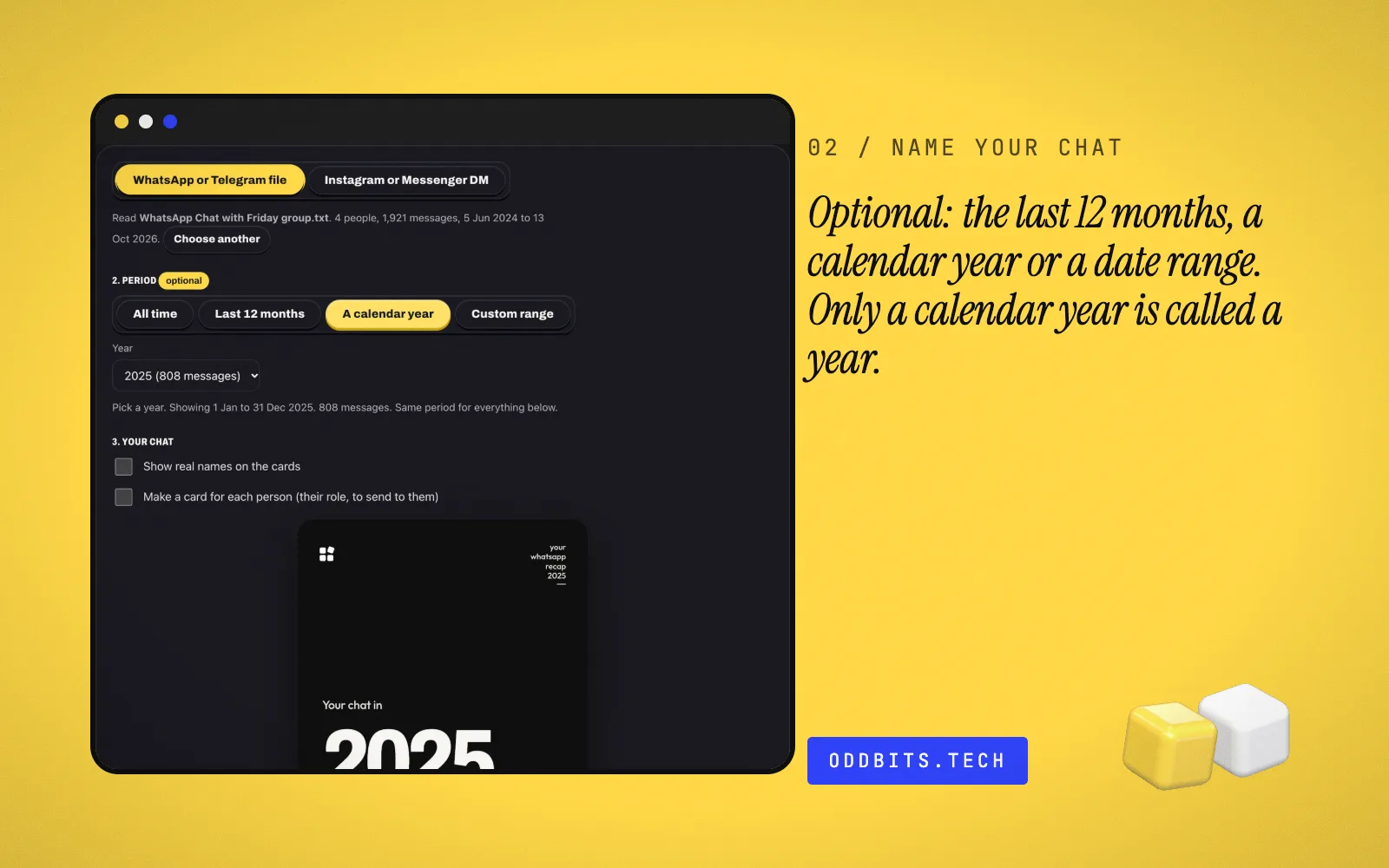
- Call a period “your year” unless you picked a calendar year
Questions
What can I use?
A WhatsApp export (.txt or .zip), a Telegram Desktop result.json, or the whole Instagram or Messenger download, from which you pick one conversation. Any chat works, one-on-one or group.
Does it have to be a year?
No. It uses the whole chat by default. You can narrow it to the last 12 months, a calendar year or a date range, and only a calendar year is called a year.
How is the name chosen?
From the numbers, never from what anyone wrote: who is most active, at what hour, on which day. Each role comes with the number that earned it, shown underneath.
Does it read my messages?
The names and roles come from counts. Two things read words in your browser: the Favourites card lists the words and emoji used most, and Who Said It? needs the lines you pick for the quiz.
What leaves my device?
The page runs in your browser, and the code makes no request that carries your file. The one thing that is stored is a Who Said It? quiz, if you make a short link (the default): Your quiz is encrypted in your browser before it's stored. We can't read it; only people with the link can. It's deleted after 12 hours. The long link stores nothing.
Why does Chat Chemistry need two people?
It compares two people, such as who texts first and who replies faster. In a group chat there is no single pair to compare; pick a one-on-one conversation or export a one-on-one chat.
Is this affiliated with WhatsApp, Telegram, Instagram or Messenger?
No. We read the files they give you. Their names appear only to say which export to choose.
Guides
Not affiliated with, endorsed by or sponsored by WhatsApp, Telegram, Instagram, Facebook, Messenger or Meta. They are named only to say which export this reads. No logos or artwork are used.
More from Odd Bits

Year in review
FreeYour year in cards: Instagram, Netflix, Spotify, Messenger and your git log.
Privacy Leak Check
FreeSee the hidden data in photos and Office files before you share them, and save a copy without the location and author.
Subscription Sniffer
FreeFind recurring charges in your bank CSV. You map the columns once.